
Modules, hierarchy, and custom symbols
Documentation home · Live debugging
A module definition holds a reusable circuit or Verilog source. Place instances of that definition in other circuits to build a hierarchy. Editing a definition updates its instances; each live instance has its own state.
Create a definition
Choose Module → New module…, enter a unique name, and build the circuit on its new canvas. Choose Module → New Verilog module… to create a source module instead; see Verilog modules.
Switch between definitions using Modules. Tree shows instance paths, while List shows each definition. Module creation and schematic edits support undo/redo.
Expose ports
Open Interface. Select a net and choose Input, Output, InOut, or Internal. Inputs receive signals from the parent; outputs drive the parent; inout ports carry signals in both directions. Port names and widths become the instance’s pins.
Name your nets in Properties before exposing them. When changing connected bus widths, disconnect the affected pins, update the interface, then reconnect them.
For a Verilog definition, use Interface… in its Edit tab to declare ports and observed internal signals.
Place an instance
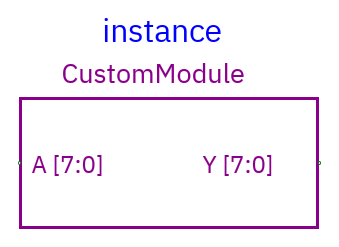
- Switch to the parent schematic.
- Find the definition under Module instances in Components and drag it onto
the canvas. You can also click
+beside another module’s row, then place it. - Connect its pins as you would any component.
Double-click an instance in Edit to open its definition. Select the instance and press Enter for its Properties. Return to the parent by clicking its Modules row.
Build hierarchies from parent modules toward child definitions. Use separate instances to reuse the same circuit in several places.
Block layout
Instance Properties controls the block width and instance-name visibility. Choose a useful size for the number of ports and bus labels. Changes to the block layout keep connected wire endpoints attached.
Custom module symbol
Select the definition and choose Module → Edit module symbol….
- Choose Line, Rectangle, Ellipse, or Text.
- Drag to draw shapes; click to place text.
- Use the centered grid to position the drawing around the module’s ports.
- Undo shape removes the last draft shape; Clear starts a fresh drawing.
- Apply updates all instances. Cancel or Escape keeps the previous symbol.
Save the document to retain the symbol. Electrical connections remain on the module’s declared ports.
Simulation inside hierarchy
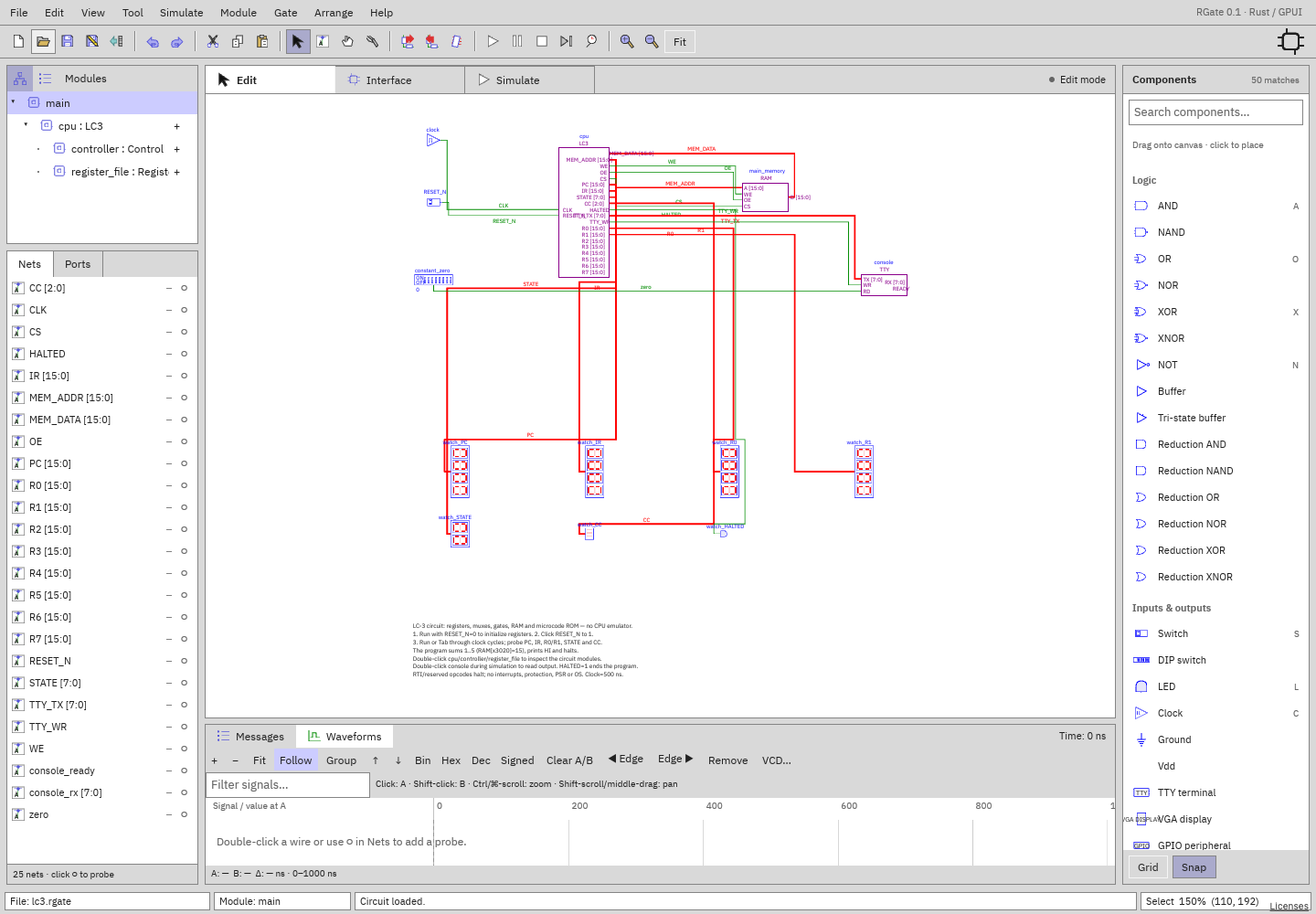
Start simulation from the parent, then select an exact Tree instance or double-click its block. The canvas, Nets, displays, and probes show that copy’s live values. Time and state continue as you navigate.
The workspace shows a path such as Live: main/cpu/controller. Use ↑ Parent
to return. For repeated copies, select the specific Tree path; List is useful
when a definition has one live instance.
Probe child ports to follow signals across a module boundary. Probe internal nets to inspect the selected instance. Waveform names include the instance path. Pause to inspect values and Stop before editing a shared definition.
Place schematic ports
Search Components for Input port, Output port, or InOut port and place a marker on the child schematic. Each marker creates its own named port. Double-click it to set the name and width, then wire its pin to the circuit.
For a reusable AND block, place inputs named A and B and an output named
Y. Wire A/B to the AND inputs and its output to Y. Instances of the module
then expose those three pins. Input receives a signal from the parent, Output
sends a signal to it, and InOut exposes a shared bidirectional bus.