
Getting started
Documentation home · Next: Interface
Open RGate on your desktop, or launch it in your browser. The starting circuit is a full adder, with three switches and two output LEDs.
Run your first circuit
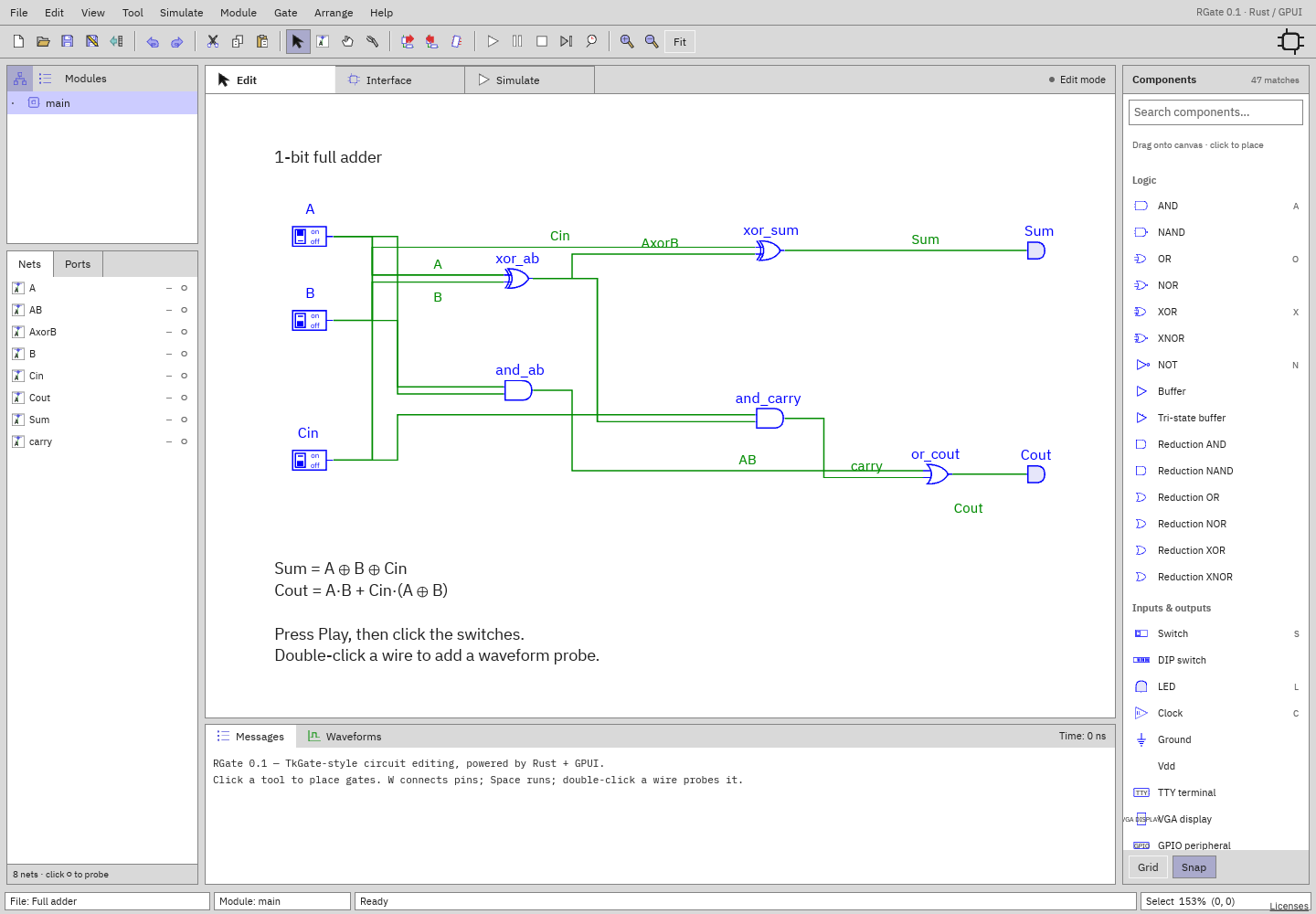
- Press Space or click Play.
- Click
A,B, andCinto change the inputs. - Watch the Sum and Cout LEDs. The Nets panel shows the signal values too.
- Click
○beside Sum or Cout to record a waveform. - Press Space to pause, then use F6 to step through the next change.
- Click Stop to return to editing.
Open an example
Choose File → Open… and select a .rgate file. The
example circuits include adders, counters, a shift
register, a Verilog PWM dimmer, an LC-3 computer, and a VGA controller.
To use a linked example, download its .rgate file, then open it in RGate. In
the browser, Open lets you select a file from your device.
Build a small circuit
- Choose File → New circuit.
- Search Components for Switch. Drag it onto the canvas.
- Add a second switch, an AND gate, and an LED.
- Press W. Click a switch output, then an AND input. Connect the second switch to the other input and the AND output to the LED.
- Press V or Escape to return to selection.
- Press Space and toggle the switches. The LED lights when both inputs are high.
- Choose File → Save to keep your circuit.
Set component widths in Properties before connecting buses. Use selection and wire dragging to adjust the layout, and Arrange to align components.
Write a Verilog module
In the desktop app, choose Module → New Verilog module…. Start with the counter template, edit its source in the Edit tab, and run it with RGate. You can place the module in a schematic and connect switches, a clock, and LEDs. Follow the Verilog guide for a complete walkthrough.
Keep your work
On desktop, Save writes a .rgate document. In the browser, Save downloads one.
RGate remembers your panel sizes, theme, and views, and offers recovery of
unsaved edits when you reopen it. See
files and recovery.