
Using the interface
Documentation home · Component reference
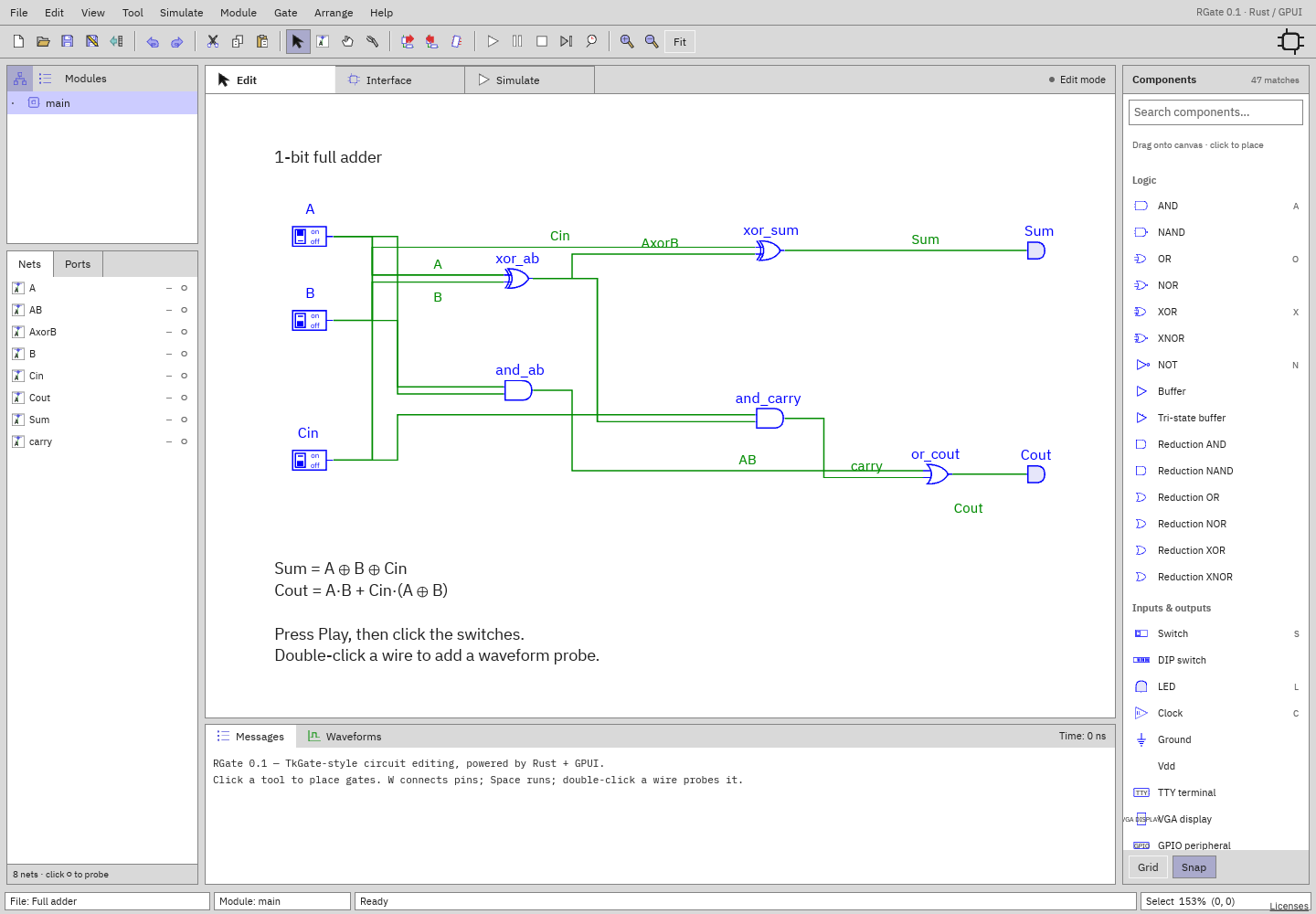
Main regions
| Region | Use |
|---|---|
| Menus and tools, top | New/open/save/export; undo/redo; selection, wiring, panning, cut/delete; rotation; simulation; zoom/Fit. Hover a toolbar tool for a status hint. |
| Modules, upper-left | Tree of instance paths or List of definitions. Click a name to edit, or inspect a live instance during simulation. Triangles expand/collapse branches. |
| Nets / Ports, lower-left | Nets list connections in the current module, including bus widths and live values. Ports limits the list to exposed interface nets. ○/● adds/removes probes. |
| Edit / Interface / Simulate tabs | Schematic or Verilog source editing, module ports, and live simulation. |
| Canvas, center | Place, wire, select, move, rotate, and inspect components. |
| Components, right | Searchable, categorized palette. Click to enter repeated-placement mode, or drag a row to place one component. |
| Messages / Waveforms, bottom | Diagnostics and selectable/copyable messages, or the independent waveform viewer. |
| Status, bottom edge | File/dirty indicator, module or live path, operation hint, zoom, tool, and pointer coordinates. |
Resize panels
Drag the vertical dividers beside the left and right sidebars. Drag the horizontal Modules/Nets separator to give the tree more height; long names stay on one line and truncate. Drag the divider above Messages/Waveforms to change bottom-panel height. RGate remembers these sizes for your workspace.
Search and place components
The right search field has Search components… as its placeholder. Filtering is case-insensitive and matches labels, gate names, categories, and other module definitions. Separate words must all match. Empty groups disappear; no matches produces an explicit message.
- Click a result, then click the canvas to place it. Escape ends repeated placement.
- Drag a result onto the canvas to place one snapped component.
- Type in Search to filter the palette; click the canvas to use placement shortcuts.
- Escape clears the search and returns focus to the canvas; Enter returns focus without clearing.
- Browse categories to choose a component, or use a quick-placement shortcut.
Use another definition’s + to place a child module in the current parent.
Selection and moving
Press V for Select mode.
- Click a gate to select it. Shift-click adds/removes gates.
- Drag a selected gate to move selected gates; connected wire endpoints follow.
- Click a wire to select that branch, rather than its whole net. Shift-click adds/removes wires.
- Drag empty canvas to box-select gate centers and wire segments intersecting the rectangle. Shift-drag adds to the selection.
- Drag a horizontal wire segment vertically, or a vertical segment horizontally. Endpoints remain attached; extra elbows are created when needed. A complete drag is one undo step.
- Group movement carries internal wires along with the selected gates. Drag individual wire segments to adjust their routes.
- Delete removes selected gates/branches. Deleting both attached gates removes their connecting wire; nets with no remaining gate connections are cleaned up on gate deletion.
- Cmd/Ctrl-A selects all. Undo/redo and cut/copy/paste use their usual shortcuts. Clipboard copies remap identifiers and retain internal gate-to-gate wires. Connect the pasted group to its new surroundings.
- R rotates clockwise; Shift-R counterclockwise. Rotation preserves electrical pin attachment.
Escape cancels an unfinished wire or move. Read Messages when a transaction fails; validation rolls back invalid edits.
Wiring and buses
Press W. Click a pin or an existing wire, click empty space to add orthogonal corners, then click the destination pin/wire. Clicking a pin in Select mode can begin wiring as well. Clicks over existing wires finish rather than create corners.
Matching-width endpoints can share a net. Ordinary bitwise logic can accept scalar inputs broadcast across a bus. To explicitly partition/join a bus, use Splitter, Concat, or Tap.
Dropping a narrower wire onto a wider existing bus automatically creates a read-only Tap, initially selecting low bits from offset 0. Edit its range before connecting more logic.
Junction dots mark connections. Add corners to guide your manual wire routes, then use Arrange to organize the finished circuit.
Find and arrange circuits
Edit → Find gate/net… (Cmd/Ctrl-F) searches across module definitions by gate/net name, gate type, and module name. Search words are case-insensitive; all words must match. Click a result (or Enter for the first) to navigate, select, and center it without changing circuit contents. In a running hierarchy with repeated definitions choose the exact instance in Tree first. This search is distinct from component-palette search.
Select components and open Arrange:
- Align left/right/top/bottom or horizontal/vertical center (at least two gates).
- Distribute horizontally/vertically by center position (at least three), keeping outer centers fixed. Grid snapping may slightly alter exact spacing.
- Auto-route selected wires keeps component positions fixed. If no wires are selected, it routes wires touching selected components. Select all to route a whole module. It preserves net and pin references and fixed unattached endpoints.
- Tidy layered layout moves selected components; with no gate selection it arranges all non-comment/non-frame gates in the current module. After placement, select wires and route them separately.
Group dragging translates internally connected wires rigidly with their gates. Selected dangling/internal wire segments whose attached gates move also translate. External attached wire ends are adjusted; explicitly select junction segments you want moved together.
Use routing to find clear paths around gates and tidy layout to improve component spacing. Apply them to a selected section of a large design. Organization changes support Undo; place components first, then route their wires.
Properties
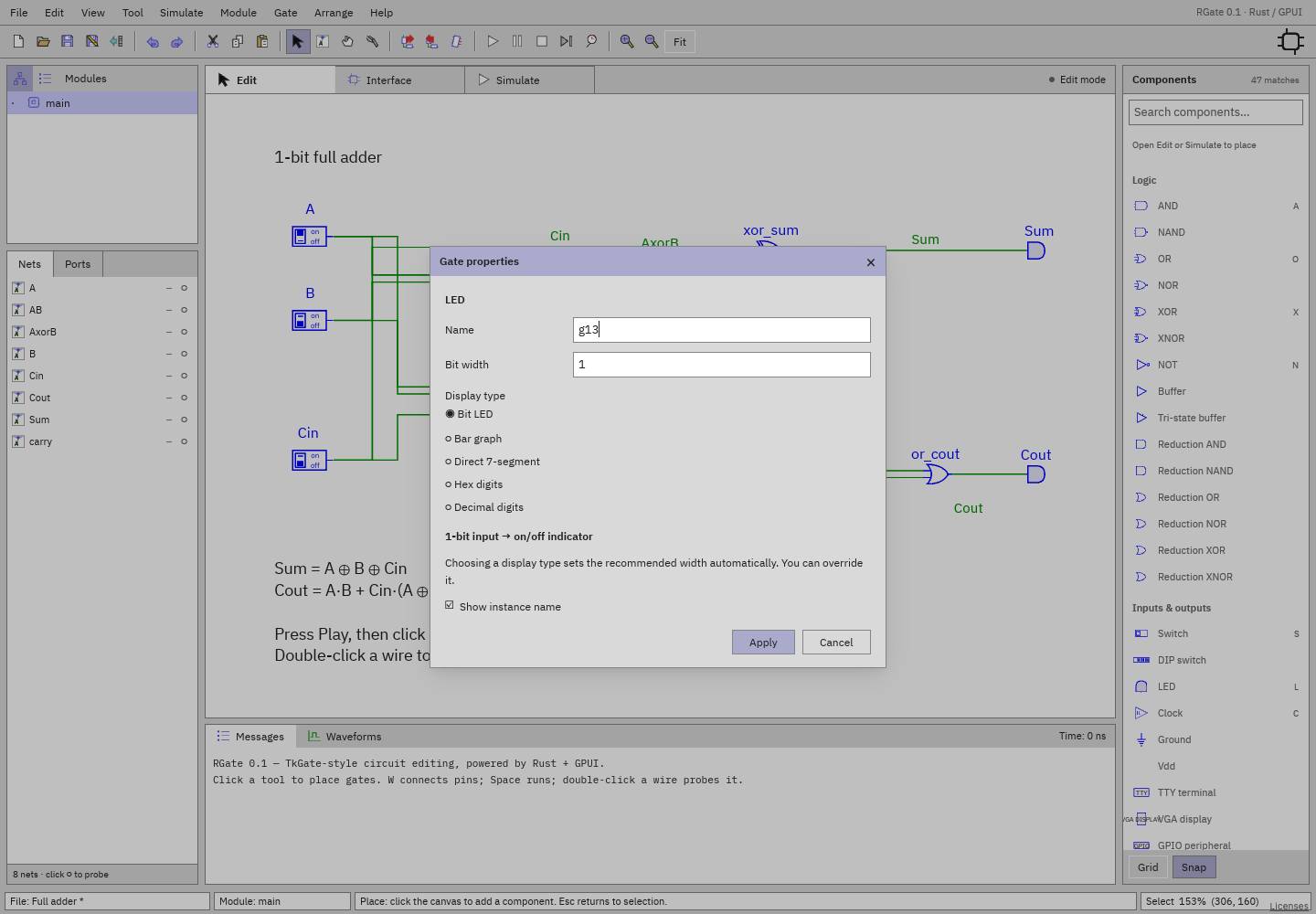
Double-click a gate, or select it and press Enter / choose Gate → Properties…. Module instances instead open their definition on a canvas double-click; use Enter for instance properties.
Common fields include name, width, initial value, delay, and instance-name
visibility. Only relevant fields affect a component; for example clock period is
configured on a Clock. Decimal initial values and 0x hexadecimal values are
accepted, including wide buses. Component-specific options appear below the
common fields.
Disconnect a component before changing pin widths/layout. Display-only LED modes may change while connected. A module instance's block width/port coordinates can be adjusted while preserving endpoints.
For a net, select its wire or Nets row and press Enter. Rename it, change its unconnected width, or hide its label. Connected widths that conflict with pin requirements are rejected.
During simulation, double-click RAM/ROM for runtime memory inspection, TTY for terminal I/O, and click a DIP for hex input. Those runtime changes differ from saved initial properties.
Navigation and themes
Scroll/trackpad scroll pans the schematic; Cmd/Ctrl-scroll zooms around the
pointer. Native trackpad pinch zooms the view. P enters drag-to-pan; middle-drag
also pans. +/− zoom, and Cmd/Ctrl-0 or Fit fits the current module.
Choose View → Light appearance / Dark appearance to switch the whole window between light and dark. Separately, View → Canvas: Classic (TkGate) / Modern sets how the schematic is drawn: Classic preserves the TkGate-style symbols and palette, Modern uses smoother symbols. Both choices persist across sessions.
Messages
Drag across Messages text to select it, including multiple lines. Cmd/Ctrl-C copies the selection; Cmd/Ctrl-A selects the visible log text. The log presents recent messages. Red errors identify failed edits, unsupported imports, or simulation problems.
See shortcuts and troubleshooting.
Swap component inputs
Right-click a component and choose Swap inputs to exchange its two input connections without logically inverting either signal. For components with more than two inputs, choose Swap inputs…, then click the two input pins to swap. The first pin is highlighted; the status bar shows its pin and net names. Press Escape to cancel without changing the circuit.
The pins must have matching widths. Other inputs and net names are unchanged, and Undo restores the connections and wire paths. Stop simulation before swapping.