
Comments and frames
Use comments and frames to explain and organize your circuit.
Comment
Place Comment from Components or press T. Properties has Text; the current
single-line field represents newlines as \n.
Text supports headings, emphasis, colors, code, and links:
<h2>Datapath</h2>
<b>Accumulator</b><br />
<font color="red" size="4">Watch this bus</font>
<code>R0</code>
<a href="https://example.com">Documentation</a>
<a href="module:RegisterFile">Open register file</a>
<img src="diagram.png" width="70" height="60" alt="Diagram" />
Supported display runs include headings, bold/strong, italic/emphasis, code/pre, font color/size, line breaks, paragraphs, lists, simple table-cell spacing, links, and image alt-text placeholders. Common named colors and hex colors work. Save the document to keep the annotation’s text and formatting.
Cmd/Ctrl-click or double-click a link:
- HTTP(S) opens the URL through the platform.
module:Namenavigates to a module definition (or a uniquely resolvable live instance).- A
.v/.rgaterelative link resolves beside a desktop-opened document. Save current edits first; unsaved changes block file-link replacement. - In the browser, use File → Open to select a circuit from your device.
Image tags display their alt text as a placeholder. Use headings, colors, and links to make the annotation easy to follow.
Frame
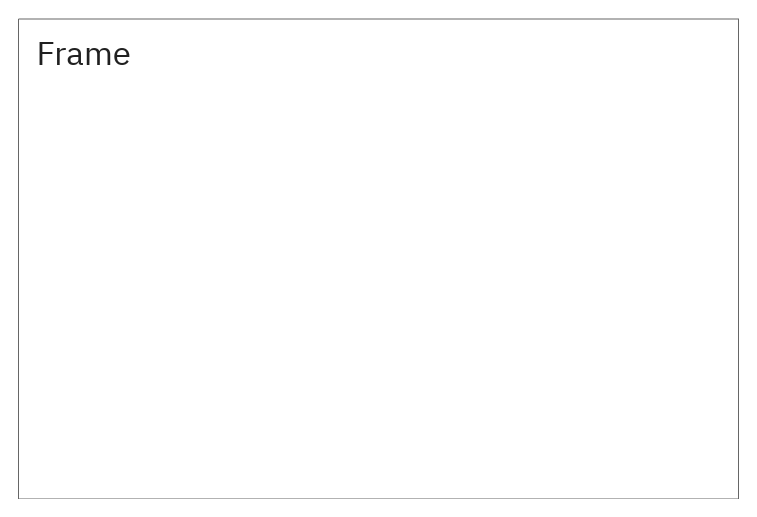
Place Frame to draw a background rectangle behind circuit content. Set title in Properties, or leave the text empty to display its instance name. Set frame width/height, or drag its bottom-right corner in Select mode. Dimensions are constrained to 20–10000 world-coordinate units.
Select and move a frame by its border; click inside it to work on the enclosed gates. Drag its bottom-right corner to resize. Use a gate/wire selection to move a group together. Save the document to keep frame placement and titles.